Plans and billing
How paid plans are charged: monthly or yearly, the price that falls the longer you stay, refunds, and credits for one more document.
Browse guides
On this page
Review a plan and return to your task
Keep your business, agreement template or room preparation through plan review and payment confirmation.
When choosing your first agreement or private room, you can review Pro for reusable templates, unlimited documents, or an NDA before room entry. Your Free preparation stays available.
Plan review keeps the selected business and task. Use the return link to continue, including if you cancel checkout or payment confirmation is still pending. A selected signing template stays selected. Billing shows the current access and payment status.
When comparing plans from the data-room pricing guide, your private-room task stays selected through account setup. Choose Free to prepare it, or review Pro or Business before deciding whether to pay.
An owner can choose the plan or invite a colleague to pay through a billing-only invitation. That invitation does not give the payer ownership or access to documents.
The longer you stay, the less you pay
What comes off in each year, what reaches the next invoice, and what does not restart the clock.
On Pro and Business, monthly and yearly alike, the price falls the longer a workspace stays subscribed without a break. The list price does not change; the discount is a line on each receipt, and Settings, Billing shows the month you are in and when the next step begins.
| Months 1 to 12 | The list price, whichever way you pay. |
|---|---|
| Months 13 to 24 | 10% off. |
| Months 25 to 48 | 15% off. |
| Month 49 onwards | 20% off. This is the lowest price. |
| The first year | The list price, whichever way you pay. Nothing is discounted inside it: a yearly invoice covers the whole year and is raised on day one, so there is nothing for a reduction earned during it to land on, and rewarding a monthly payer for loyalty a yearly payer cannot be paid for would narrow the gap in the year it matters most. |
| After it | 10% off from your thirteenth month, 15% from your twenty-fifth, 20% from your forty-ninth. Monthly it reaches the next invoice; yearly it reaches the renewal. The same percentage off both, so yearly stays cheaper at every step. |
| If you cancel | The clock starts again. A new subscription starts at the list price and counts from month one. The only exception: subscribe again within 30 days and you carry on from where you were, and the days away do not count. |
| What is not a stop | Switching between monthly and yearly, moving between Pro and Business, adding or removing seats, or a card that fails and is paid on a retry. Your place stays, and so does your discount. |
| A refund | The refunded time does not count towards your place. |
| Founding places | The discount comes off the founding price too, so a founding member always pays the least. |
| Document credits | Stay at their price. |
| Extra rooms | Carry the same discount as the plan, at the moment you buy one. |
Monthly or yearly
Yearly costs less, switching credits what you have paid, and a cancelled plan runs to the day paid for.
Every paid plan can be paid monthly or yearly, and yearly costs less: the pricing page shows both. Switching from monthly to yearly credits the months already paid. A plan renews until it is cancelled, and a cancelled plan stays active until the end of the period already paid for.
Invite someone to pay
A verified finance contact pays for the first subscription without membership or document access.
An organisation Owner can invite a finance colleague or another authorised business contact to pay for its first Pro or Business subscription. Open Settings, Billing, find Invite someone to pay, enter their email address and create the invitation. Copy the link to share it yourself, or choose Email invitation. Creating a link sends no email.
The recipient signs in or creates an account with that verified email address. They see the organisation, choose monthly or yearly billing and review the recurring price before continuing to Stripe. They do not need a sending seat or membership, and the invitation grants no ownership or document access. Their selected organisation stays unchanged.
The invitation lasts seven days. Only one is open at a time; the Owner can revoke it before inviting somebody else. An unfinished checkout can be resumed at its reserved price or cancelled before choosing a different plan. A submitted payment cannot be reversed by revoking its invitation.
Billing starts when the paid plan is purchased, including during partner-granted access. The Owner keeps responsibility for ongoing plan changes, cancellation and payment management. Invitations do not grant a billing administrator role or access to past invoices. An organisation with an existing Stripe billing account continues through its Owner’s normal Billing controls.
Review the right workspace
Review the company and current billing state after a company switch or an unconfirmed result.
Billing changes apply to the workspace displayed when you opened the page. If another tab switches workspaces, ShareSign asks you to review Billing before changing a subscription, opening payment management or buying credits, seats or room capacity. It checks your current permission again.
If a connection drops while a change is being made, the result may be unconfirmed. Check the workspace and its current Billing details before trying again. Your choices and cancellation note stay on the open form; ShareSign does not automatically repeat the request.
Cancelling
What the screen shows before you go, and how to take it back while the plan is still running.
Cancel from Settings, Billing, on one screen. Before anything ends it shows what the workspace would give up: the month you are in, your discount against the list price, and for a founding member the founding price. It asks why you are leaving, and you can leave that blank. The plan runs to the end of the period already paid for, and the workspace owners are emailed the same.
Until that day, Resume takes it back: the same subscription, the same price and the same months. After it, subscribing again within 30 days carries on where you were; after that the clock starts again from month one.
Refunds
A yearly plan in full within 14 days, once per workspace, without asking anybody.
A yearly plan can be refunded in full within 14 days of the payment, once per workspace, from Settings, Billing. We email the workspace owner at least 30 days before a yearly plan renews, with the price the renewal will charge.
A code from a partner
A partner's code puts a workspace on a plan for some months with no card, told two weeks before it ends.
An accelerator, a law school or a community may give its members a code, or a link with one in it. It puts a workspace on a plan for some months, with no card and nothing to pay. Open the link, choose an existing company workspace or create one, then activate the offer. Choose later lets you continue without using the code. You can also type the code in Settings, Billing for the workspace you have open. The workspace’s owner does this, while the workspace is on the Free plan.
Settings, Billing then says whose code it was and the day it ends. Owners receive an email and an in-app reminder 14 days before, seven days before and a final invitation three days after. When it ends, the workspace is on the Free plan again unless you have chosen a plan, and nothing you made is deleted. A workspace uses a partner’s code once.
You can compare Pro and Business in Billing. Choosing a paid plan starts billing straight away, rather than waiting for the free access to end. You can wait until then; there is no automatic charge.
One more document
A credit sends a document after the month's allowance is used, and credits never expire.
On a plan with a monthly document allowance, a credit sends one more document once the allowance is used. Credits do not expire and belong to the workspace.
Rooms and passes
One open room on Pro and three on Business, with more bought once rather than subscribed to.
Pro includes one open data room and Business three, at no extra cost. Rooms you are still building and rooms you have closed are unlimited. When a deal needs more, you buy the days, once, and never a second subscription. The rooms guide explains the rooms themselves.
| An extra room | 30 days, on Free, Pro and Business, at the same percentage off your plan has reached. |
|---|---|
| A deal pass | 90 days with guests, for a plan with no rooms of its own, at list price. |
| Paid once | Neither renews. The Rooms page shows what is running and until when, and either can be extended: the new days start where the old ones end. |
| From a pass to a plan | Subscribe to a plan with rooms while a deal pass is running, and the days you have not used come back as money on your account, against your invoices. |
| If the plan ends | Rooms bought stay open for the days they paid for. After that, an extra room is at list price again. |
| Months on a pass | Buy passes for a year and it is still not a subscription: only paid months on a plan count towards the discount. |
What your workspace shows
Data Rooms, Closings, Deals, Funds and Cohorts appear when they are switched on: asked once at the start, and changed in Settings, Features.
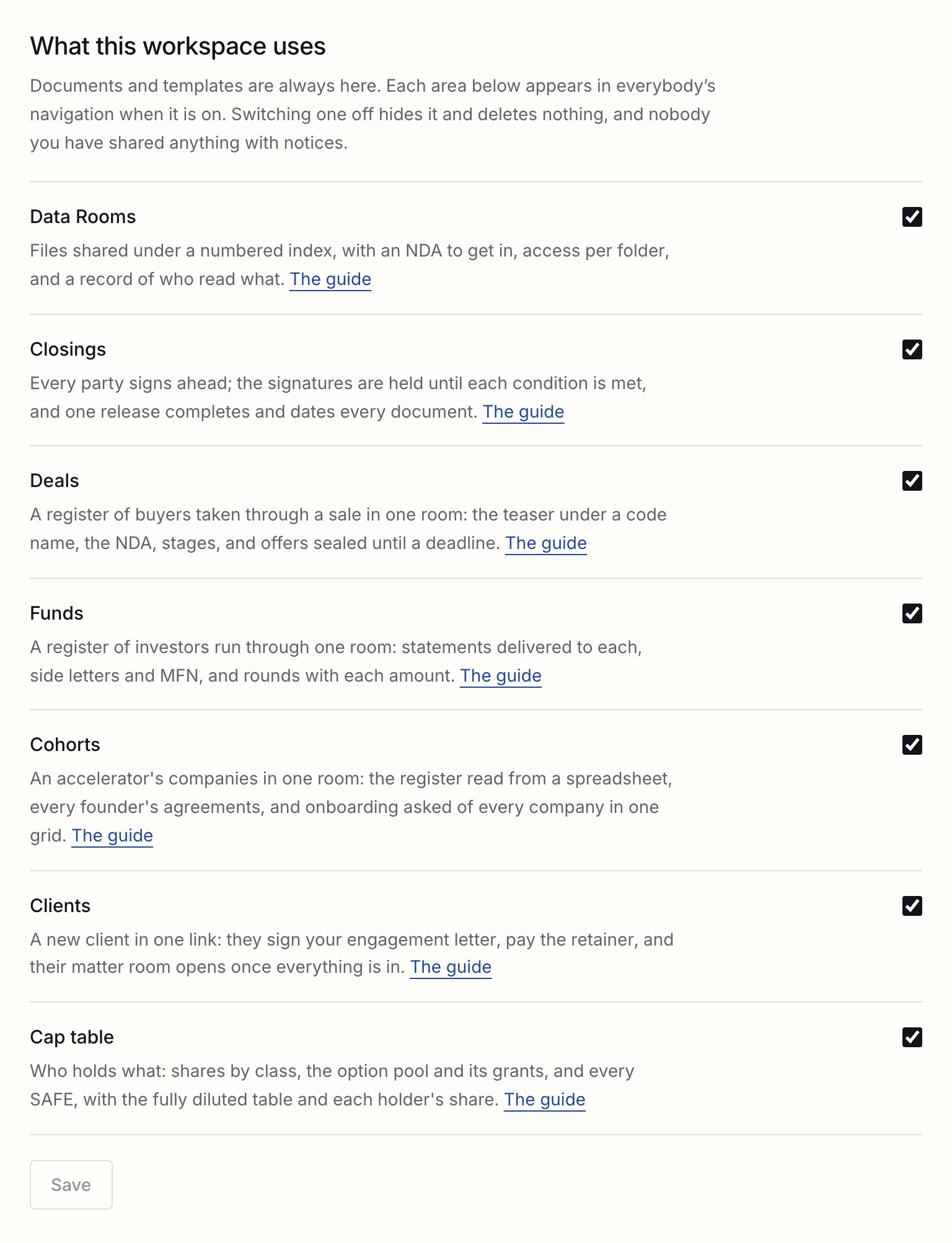
Documents and templates are always there. Data Rooms, Closings, Deals, Funds, Cohorts, Clients and Cap table each appear in the navigation, for everybody in the workspace, when they are switched on. A workspace is asked once, when it is made, which it will use, and starts with those.
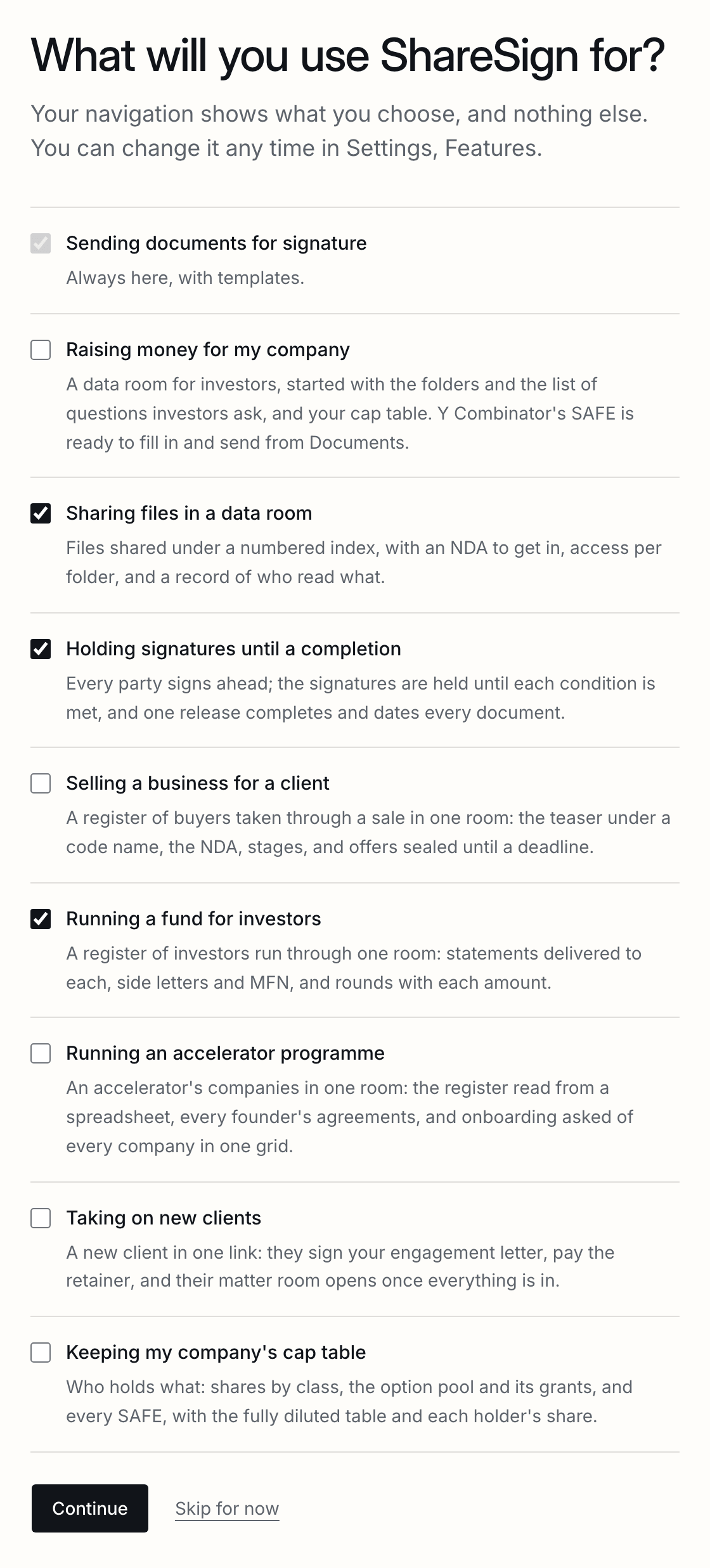
Owners and admins change it at any time in Settings, Features. Each area says what it does and links to its guide, and one your plan does not include is listed with the plan it comes with, so it can be found without being in anybody’s way.
| Switching one off | It leaves everybody's navigation and New. Nothing in it is deleted, and switching it back on shows it all again, exactly as it was. |
|---|---|
| Who notices | Nobody outside the workspace. Guests keep their rooms, signers their documents, buyers, investors and founders their folders. |
| While something is running | An area is not switched off while something in it is live: a room open to guests, a closing not yet released, a sale, a fund or a cohort whose room is open. The page names each one instead. |
| What an area needs | Deals, Funds and Cohorts run through a data room, so switching any of them on switches on Data Rooms too, and Data Rooms stays on while any is. |
| Before anybody chose | A workspace made before these switches existed, or where nobody answered the question, shows what its plan includes. |
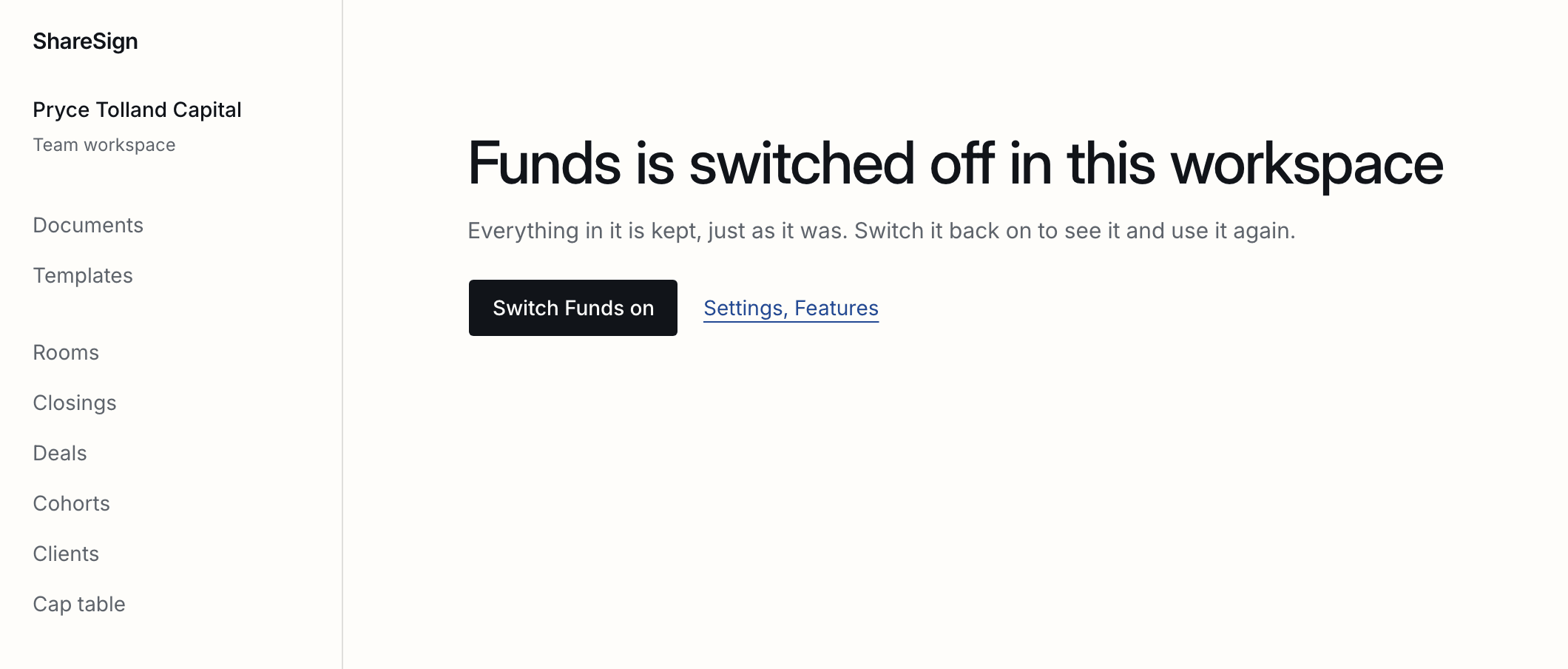
A link that still reaches a switched-off area says so, and gives whoever may switch it back on the button to do it.
Tell us what you were trying to do and we will fix the page. Write from the support page.
Last changed 17 October 2026.